• Telsip Onboarding
    • Registering a New Company on Telsip
    • Logging in to Your Company Account
    • Subscribing to Telsip Plans
    • Payment & Activation
  • Telsip User Portal
    • Dashboard
    • Spark Management
    • DID Numbers
    • Billing & Payments
      • Subscriptions
      • Wallet
      • Orders
      • Payment History
      • Payment Cards
    • الشركة
    • Settings
    • User Profile
  • Telsip Mobile Application
    • Application Login
    • Phone
    • Calls
    • Connections
    • Voicemail
    • More Menu
      • Accounts
      • Settings
      • Change Language
      • About App
      • Call Telsip Support
      • Chat with Telsip Support
  • Telsip Cloud PBX
    • PBX V 1.X.X
      • Overview
        • Log in to the PBX
      • System
        • Authentication
          • Users
          • Groups
          • Permissions
        • Network
          • Network Host
          • Diagnostic Tools
        • Email
        • Security
          • IP Tables
          • Fail2ban
        • VPN
        • Maintenance
        • LDAP
      • PBX
        • Extensions
        • Trunks
        • Call controls
          • Inbound Routes
          • Outbound Routes
          • Time Conditions
          • Auto CLIP
        • Call Features
          • IVR
          • Ring Group
          • Queue
          • Paging/Intercom
          • Blacklist
        • Voice Prompts
        • Music On Hold
        • NAT
        • Status
        • CDR
        • Feature Code
        • Recording Storage
        • Transport
      • Event Center
        • Session Timeout
        • Activity Log
  • Telsip Cloud Call Center
    • Call Center V 1.X.X
      • Overview
        • Log in to the call center
      • Dashboard
        • Agent Insights
        • Inbound calls
        • Outbound calls
        • My Dashboard
      • Call Center Management
        • Missed Call Actions
          • Missed Calls Actions History
          • Missed Call Actions
          • Missed Calls Actions Logs
        • Type of Break
        • Widgets
        • CDRs
        • CDR Survey Questions
        • Queues
        • Queue Logs
        • Trunk
        • External Lookup
      • Contacts Management
        • Contacts
        • Contact Groups
        • Companies
        • Contact Custom fields
        • Customer Journey
      • Authentication
        • Users
          • Admin
          • Supervisor
          • Agent
        • Groups
        • Permissions
        • Add End User
      • Applications
        • Ticket Managements
          • Create Ticket
          • Categories
            • Sub Categories
          • Reminder Settings
          • Tickets List
          • Ticket Statistics
          • Tickets CCs
          • Follow Up
          • Notifications Templates
          • Custom Fields
          • Ticket Logs
        • SMS
          • SMS Message
          • Bulk SMS
          • SMS Templates
        • Email Management
          • Outgoing Emails
          • Incoming Emails
          • Attachments
          • Templates
          • Teams
        • Auto Dialer
          • Dial Teams
          • Auto Dialer Log
          • Auto Dialer Status
        • Web Chat
          • Dashboard
          • Offline Messages
          • Web Chat Logs
        • Queue Evaluation
          • Queues Evaluation Level
          • Queues Evaluation
        • Social Media
          • Social Media Teams
          • Social Media Sessions Tracker
          • WhatsApp
        • Agent Chat
      • Reports
        • Generate Reports
      • Settings
        • Site Administration
        • Email Settings
        • Email Channel Mailbox
        • Email Channel Outbox
        • Email Logger
        • Web Chat Settings
        • SMS Gateway
        • ODBC Settings
        • System Parameters
        • Updates
        • Web Phone Configuration
        • Web Logo Settings
        • End User Logo
      • Block
        • Blocked Word
        • Block Settings
      • Status
      • Session Control
      • Activity Log
  • Event Center
    • Session Timeout
    • Activity Log
  • Recording Storage
  • Transport
  • Applications
    • Ticket Managements
      • Categories
        • Sub Categories
      • Create Ticket
      • Tickets List
      • Reminder Settings
      • Dashboards
      • Ticket Statistics
      • Tickets CCs
      • Follow Up
      • Custom Fields
      • Notifications Templates
      • Ticket Logs
    • SMS
      • SMS Message
      • Bulk SMS
      • SMS Templates
    • Email Management
      • Outgoing Emails
      • Incoming Emails
      • Attachments
      • Templates
      • Teams
    • Auto Dialer
      • Dial Teams
      • Auto Dialer Log
      • Auto Dialer Status
    • Web Chat
      • Dashboard
      • Offline Messages
      • Web Chat Logs
    • Queue Evaluation
      • Queues Evaluation Level
      • Queues Evaluation
    • Social Media
      • Social Media Teams
      • Social Media Sessions Tracker
      • WhatsApp
    • Agent Chat
  • Reports
    • Generate Reports
  • Settings
    • Site Administration
    • Email Settings
    • Email Channel Mailbox
    • Email Channel Outbox
    • Email Logger
    • Web Chat Settings
    • SMS Gateway
    • ODBC Settings
    • System Parameters
    • Updates
    • Https Certification
    • Web Phone Configuration
    • Web Logo Settings
    • End User Logo
  • Block
    • Blocked Word
    • Block Settings
  • Status
  • Session Control
  • Activity Log

Payment & Activation

38 views 0

Written by Telsip WikiAdmin
أغسطس 24, 2025

These steps will help you smoothly complete your payment and activate your subscription.

  • After selecting your preferred plan, click Proceed to Payment.
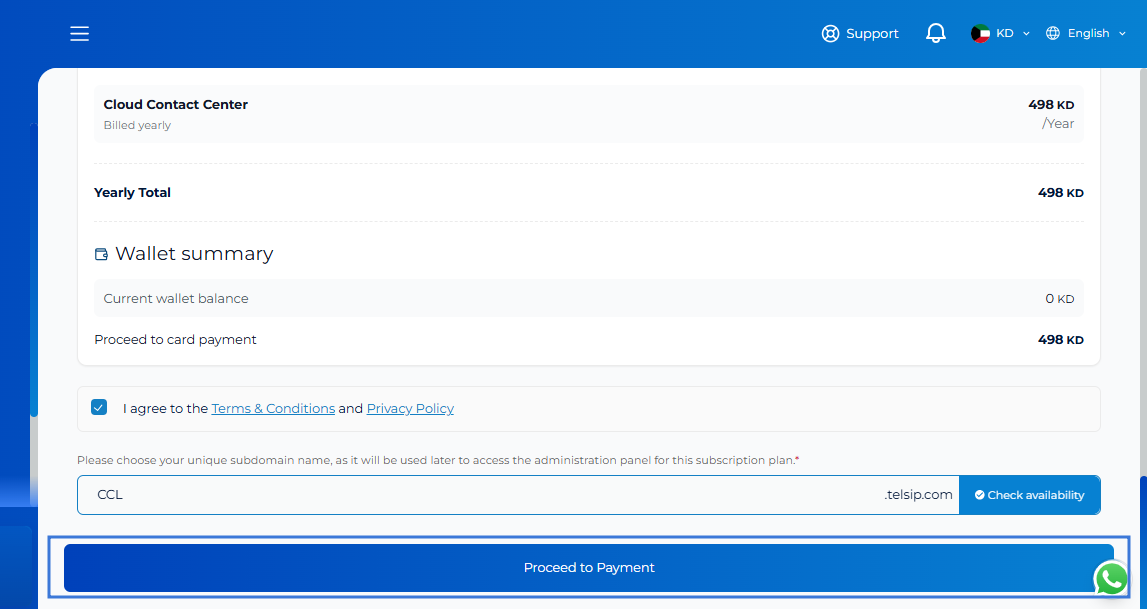
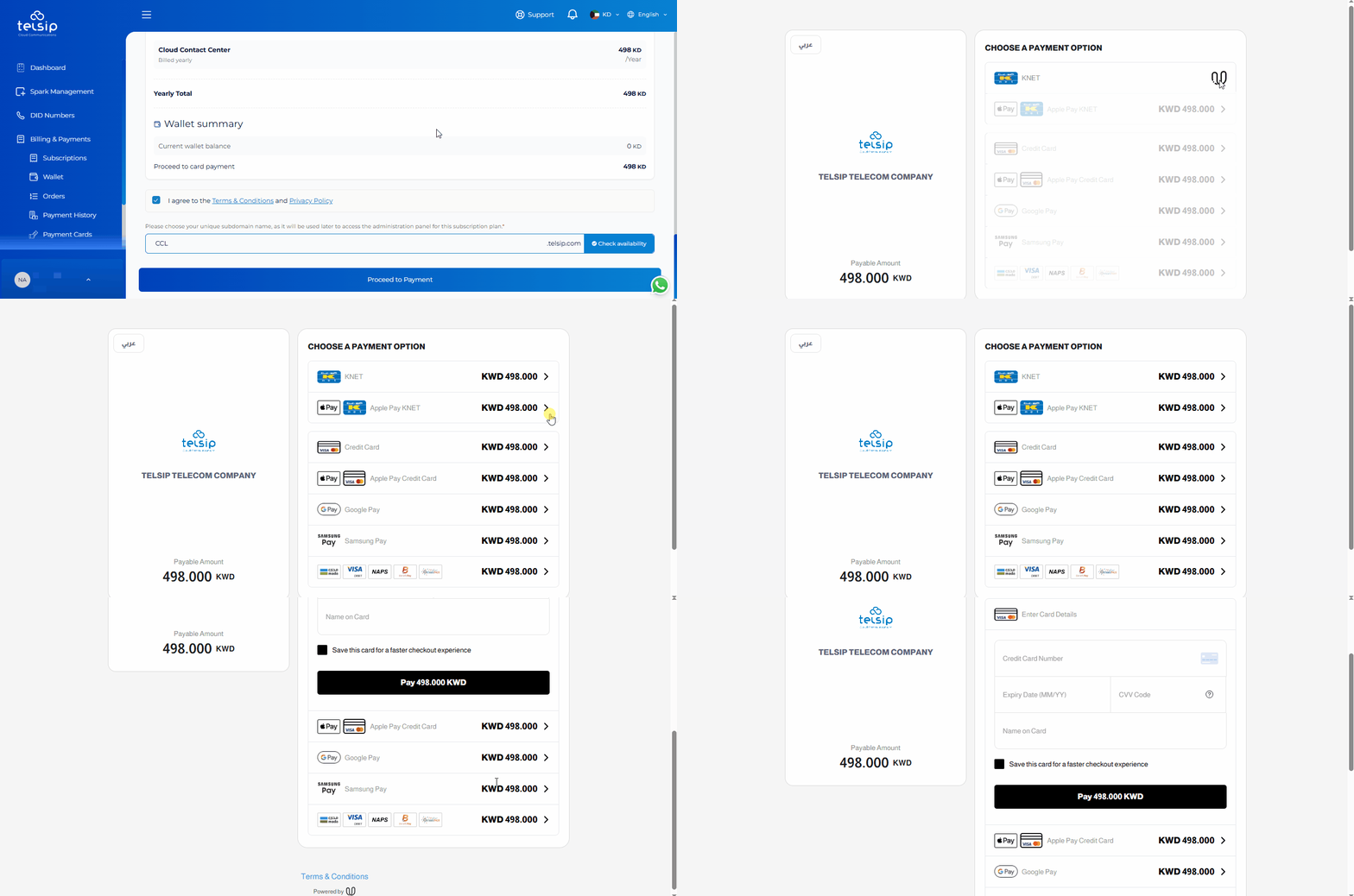
  • Select Payment Method
    • Choose your preferred payment method: (Credit Card: Visa / MasterCard, or GCC Debit Cards: mada, Visa Debit, NAPS, BenefitPay, OmanNet, etc.).
  • Enter the required payment information and confirm the transaction.
  • Once the payment is successful:
    • Your subscription plan and any add-ons will be activated immediately.
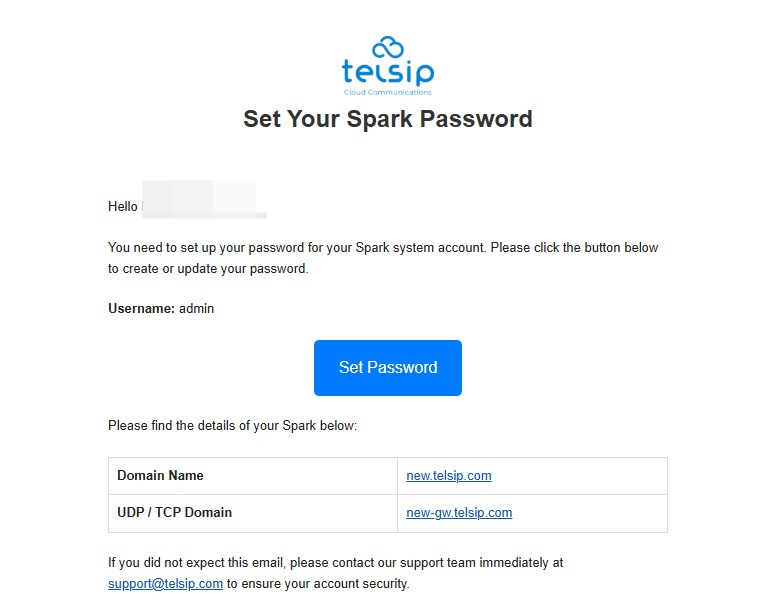
  • After a successful payment, you will receive a confirmation email based on the plan you purchased:
    • For PBX or Call Center Plans:
    • You will receive an email titled “Set Your Spark Password” with a link to activate and set up your admin password for the Spark platform.
  • For Social Media Plans:
  • You will receive an email containing your Admin Username and Social Media Domain/URL, along with a link to set a password for the admin account with details of your plan.
  • For Mixed Plans (PBX/Call Center + Social Media):
    You will receive both emails separately to set up access for each respective service.

📌 Note: Please ensure you verify your company email address during the account setup process. Since credentials, password setup links, and all payment & subscription notifications for active services are sent to this email address, using an unverified or invalid email address will prevent you from receiving service access details.

  • You can always check your Spark anytime from Spark Management.
  • After completing all the steps, you can access your Spark using your selected domain. ✅

📌 Notes

  • You can review payment history in the Billing & Payments section.
  • If you select the option to save your card during checkout, your Visa and MasterCard details will be stored securely for faster future payments and auto-renewals.
  • If your Wallet has enough balance, the subscription will be deducted from it first.
  • If the Wallet balance is insufficient to cover the total amount, the available wallet balance will be applied first, and the remaining amount will be charged via the selected payment method or a saved card.

Was this helpful?

Yes  No

Didn't find your answer? تواصل معنا

Previously
Subscribing to Telsip Plans
Up Next
Telsip User Portal
Copyright 2026 telsip.com All Rights Reserved