
The Spark Management section allows you to view and manage all Sparks associated with your Telsip account.
From this section, you can:
- Search for a Spark by domain, plan, or Spark ID.
- Filter Sparks by their current status.
- View the total number of Sparks in your account.
- Use the New Subscription button to subscribe to a new plan and create a new Spark.
- View detailed information about each Spark.
Spark Status
By default, the Spark list displays All Sparks.
You can filter Sparks based on their current status:
- Running : The Spark is active and running normally.
- Stopped: The Spark is currently inactive or stopped.
- Pending: The Spark is waiting for an action or process to be completed.
- Created: The Spark has been created and is being prepared for use.
- Terminated: The Spark has been permanently terminated.
The selected status filters will appear at the top of the Spark list, making it easier to view only the Sparks you need.
Spark List
Each Spark displays key information, including:
- Domain
- State
- Plan
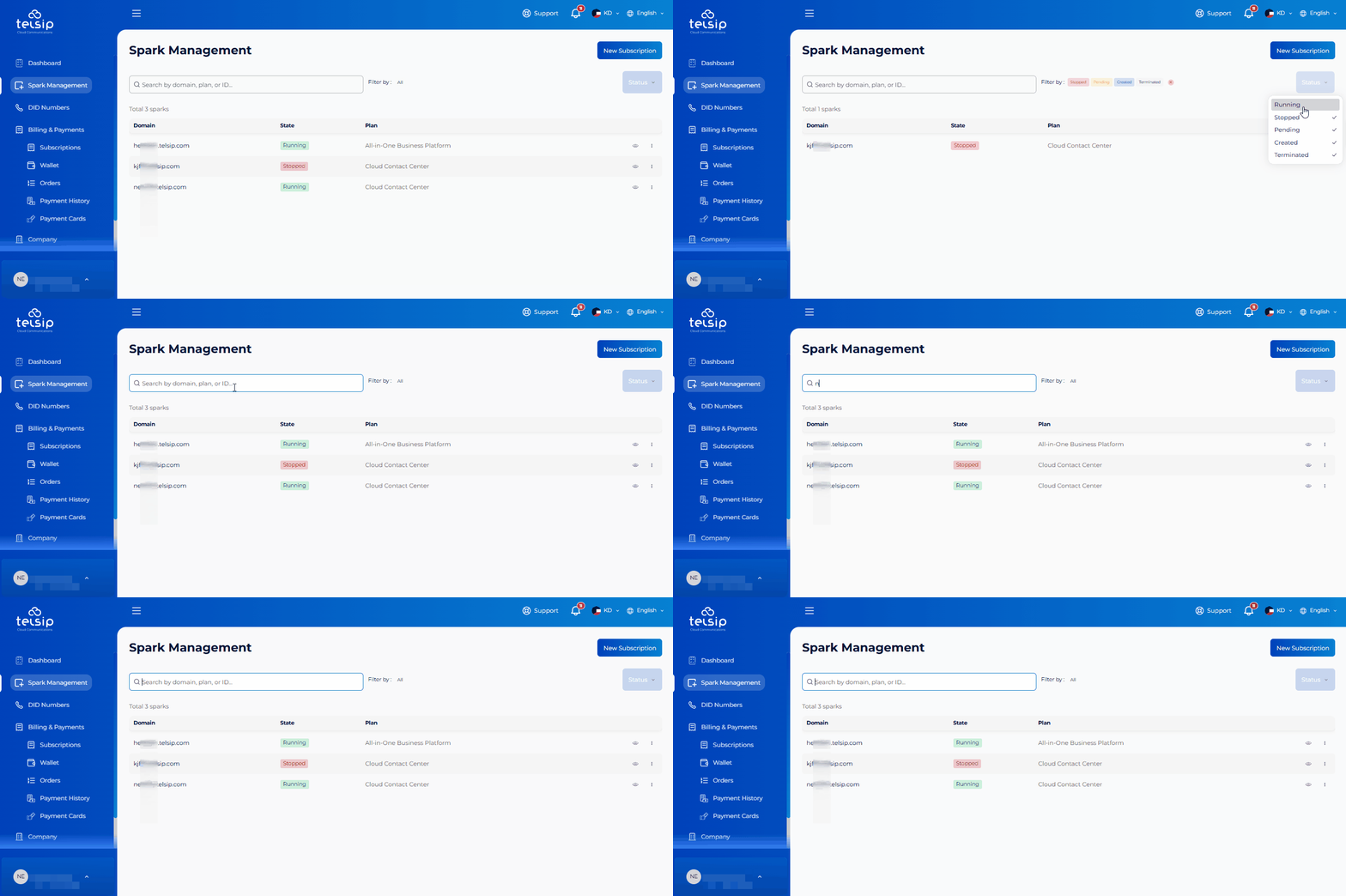
You can use the icons on the right side of each Spark to view its details or access the available management actions.
Spark Details
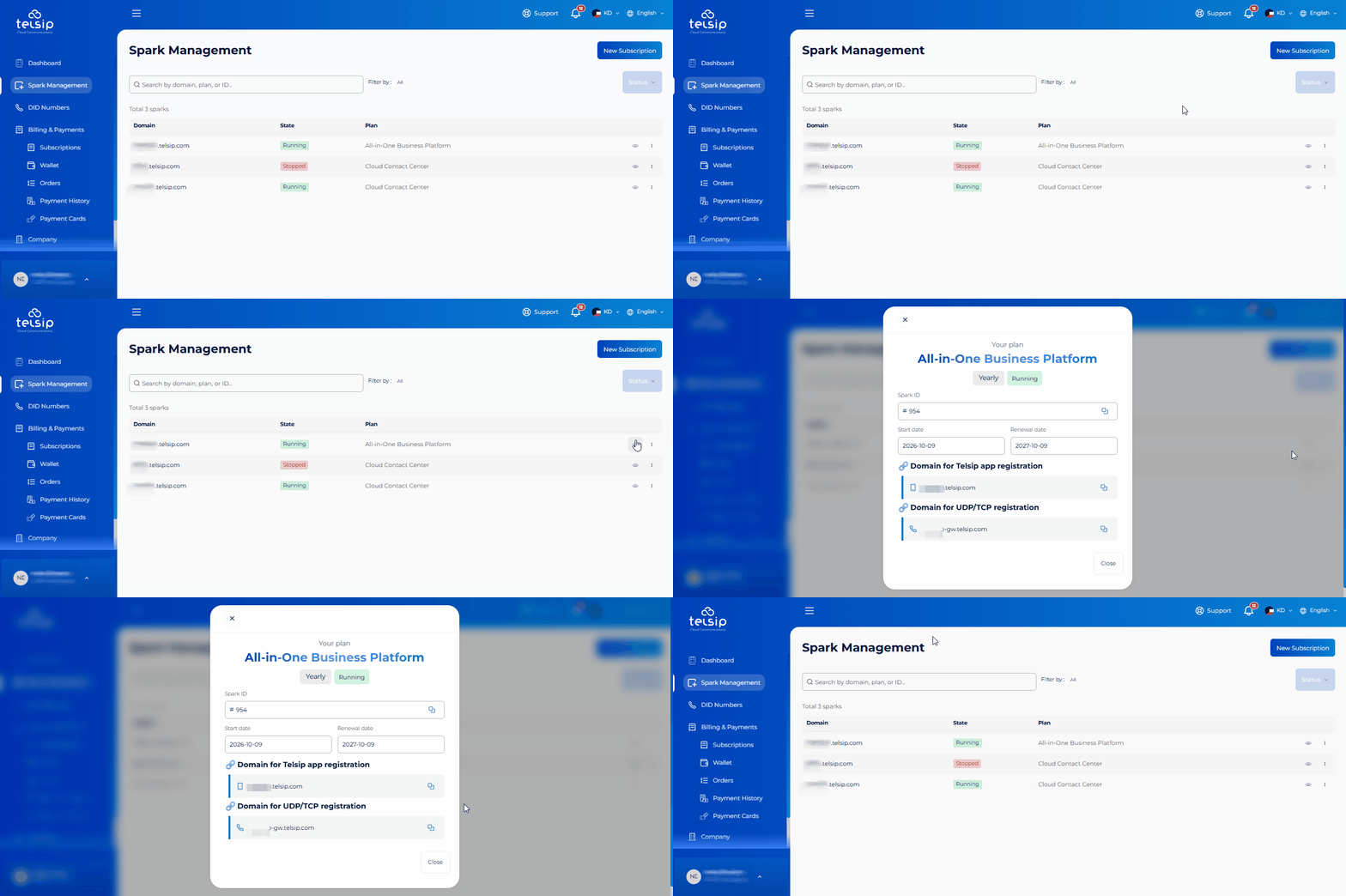
- Click the 👁 View icon to open the Spark details.
- Each Spark has two separate domains for different connection types:
- Registration Domain: Used for SIP registration through supported protocols such as TCP, UDP, or TLS.
- WebRTC Domain: Used for WebRTC-based connections, such as supported browser services and the Telsip Mobile Application.
The Spark details also include:
- Start Date: The date the Spark service started.
- Expiration Date: The date the current Spark subscription expires.
- Billing Cycle: Shows whether the Spark subscription is Monthly or Annual.
📌 Note: You can use the Copy icon next to either domain to quickly copy the domain address to your clipboard.
Spark Actions
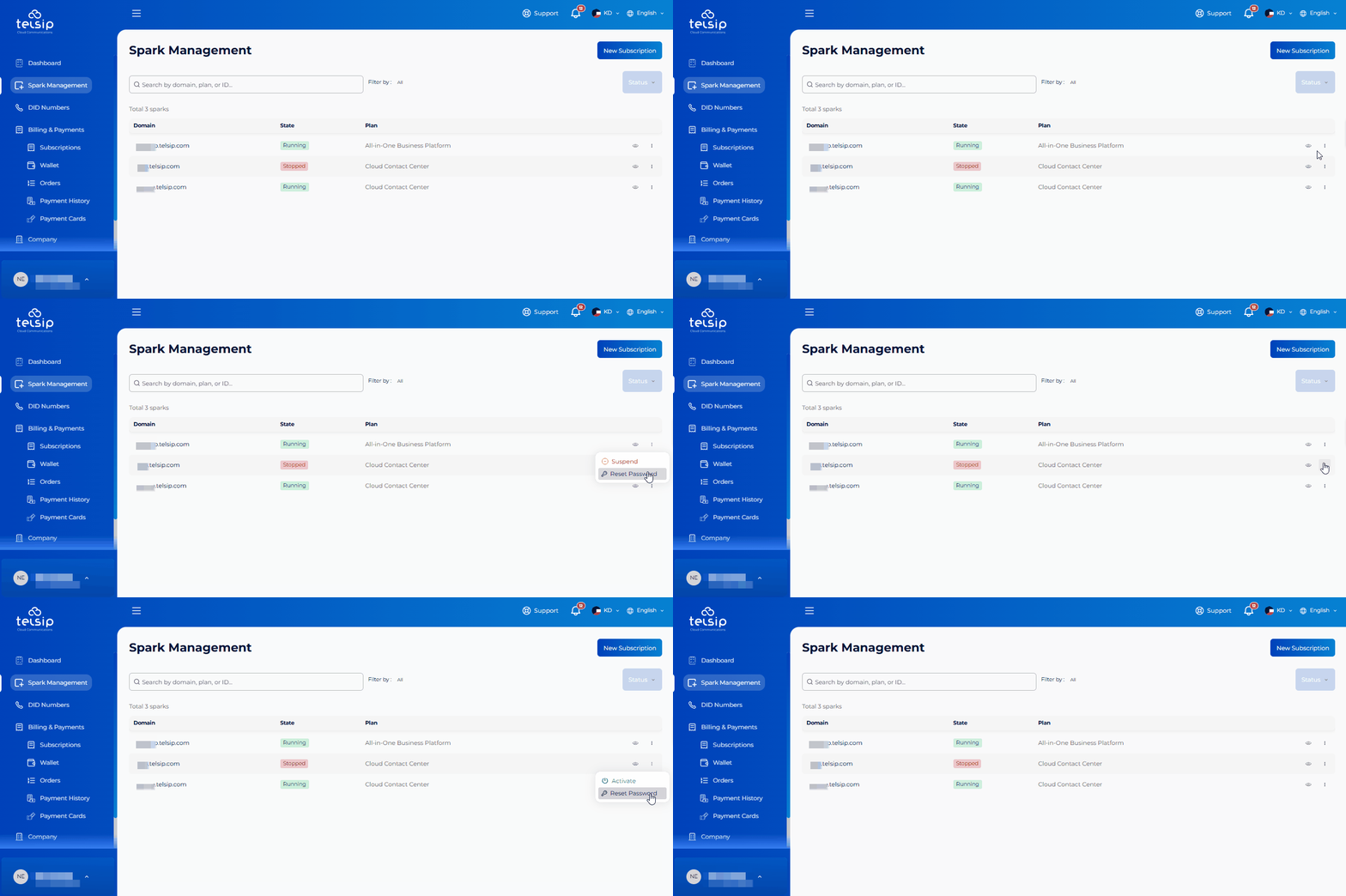
Click the three-dot menu next to a Spark to view the available management actions.
Depending on the current Spark status, the available actions may include:
- Suspend — Stops a currently running Spark and makes it temporarily inactive.
- Activate — Becomes available when the Spark is stopped, allowing you to start it again.
- Reset Password — Sends a password setup email to the company’s registered email address, allowing you to create a new Admin Password for the Spark.
📌 Note: The password reset email follows the same setup process as the initial email sent when the Spark is first created, allowing you to set a new Admin Password.
Use Spark Management to monitor and manage your existing Sparks. If you need an additional Spark, click New Subscription to explore the available plans and create a new subscription.