• Telsip Onboarding
    • Registering a New Company on Telsip
    • Logging in to Your Company Account
    • Subscribing to Telsip Plans
    • Payment & Activation
  • Telsip Business Portal
    • Dashboard
    • Spark Management
    • DID Numbers
    • Billing & Payments
      • Subscriptions
      • Wallet
      • Orders
      • Payment History
      • Payment Cards
    • الشركة
    • الدعم
    • Settings
    • User Profile
  • Telsip Mobile Application
    • Application Login
    • Phone
    • Calls
    • Connections
    • Voicemail
    • More Menu
      • Accounts
      • Settings
      • Change Language
      • About App
      • Call Telsip Support
      • Chat with Telsip Support
  • Telsip Platform
    • Telsip Cloud PBX
      • PBX V 1.X.X
        • Overview
          • Log in to the PBX
        • System
          • Authentication
            • Users
            • Groups
            • Permissions
          • Network
            • Network Host
            • Diagnostic Tools
          • Email
          • Security
            • IP Tables
            • Fail2ban
          • VPN
          • Maintenance
          • LDAP
        • PBX
          • Extensions
          • Trunks
          • Call controls
            • Inbound Routes
            • Outbound Routes
            • Time Conditions
            • Auto CLIP
          • Call Features
            • IVR
            • Ring Group
            • Queue
            • Paging/Intercom
            • Blacklist
          • Voice Prompts
          • Music On Hold
          • NAT
          • Status
          • CDR
          • Feature Code
          • Recording Storage
          • Transport
        • Event Center
          • Session Timeout
          • Activity Log
      • PBX V 2.X.X
        • Overview
          • Log in to the PBX
        • Dashboard
        • Extensions
        • Trunks
        • PBX Features
          • Call Features
            • IVR
            • Ring Group
            • Paging/Intercom
            • Blacklist
          • Call controls
            • Inbound Routes
            • Outbound Routes
            • Time Conditions
            • Auto CLIP
          • Feature Code
        • Voice & Audio
          • Voice Prompts
          • Music On Hold
          • System Sound Language
        • Queues
        • CDRs
        • SIP Settings
          • NAT
          • Transport
        • System
          • Network
            • Network Host
            • Diagnostic Tools
          • VPN
          • SMTP Settings
          • LDAP
          • Session Timeout
          • Storage
        • Security
          • Firewall
          • Fail2ban
        • Maintenance
          • Service Actions
          • Backup & Restore
        • Advanced Settings
        • Status
        • Audit Log
        • Authentication
          • Users
          • Groups
          • Permissions
    • Telsip Cloud Call Center
      • Call Center V 1.X.X
        • Overview
          • Log in to the call center
        • Dashboard
          • Agent Insights
          • Inbound calls
          • Outbound calls
          • My Dashboard
        • Call Center Management
          • Missed Call Actions
            • Missed Calls Actions History
            • Missed Call Actions
            • Missed Calls Actions Logs
          • Type of Break
          • Widgets
          • CDRs
          • CDR Survey Questions
          • Queues
          • Queue Logs
          • Trunk
          • External Lookup
        • Contacts Management
          • Contacts
          • Contact Groups
          • Companies
          • Contact Custom fields
          • Customer Journey
        • Authentication
          • Users
            • Admin
            • Supervisor
            • Agent
          • Groups
          • Permissions
          • Add End User
        • Applications
          • Ticket Managements
            • Create Ticket
            • Categories
              • Sub Categories
            • Reminder Settings
            • Tickets List
            • Ticket Statistics
            • Tickets CCs
            • Follow Up
            • Notifications Templates
            • Custom Fields
            • Ticket Logs
          • SMS
            • SMS Message
            • Bulk SMS
            • SMS Templates
          • Email Management
            • Outgoing Emails
            • Incoming Emails
            • Attachments
            • Templates
            • Teams
          • Auto Dialer
            • Dial Teams
            • Auto Dialer Log
            • Auto Dialer Status
          • Web Chat
            • Dashboard
            • Offline Messages
            • Web Chat Logs
          • Queue Evaluation
            • Queues Evaluation Level
            • Queues Evaluation
          • Social Media
            • Social Media Teams
            • Social Media Sessions Tracker
            • WhatsApp
          • Agent Chat
        • Reports
          • Generate Reports
        • Settings
          • Site Administration
          • Email Settings
          • Email Channel Mailbox
          • Email Channel Outbox
          • Email Logger
          • Web Chat Settings
          • SMS Gateway
          • ODBC Settings
          • System Parameters
          • Updates
          • Web Phone Configuration
          • Web Logo Settings
          • End User Logo
        • Block
          • Blocked Word
          • Block Settings
        • Status
        • Session Control
        • Activity Log
    • Versions & Releases
      • v1.x.x
        • v1.1.x
        • v1.2.x
        • v1.3.x
        • v1.4.x
        • v1.5.x
        • v1.6.x
        • v1.7.x
        • v1.8.x
        • v1.9.x
        • v1.10.x
        • v1.11x
      • v2.x.x
        • v2.0.X
          • v2.0.4
      • v3.x.x
        • v3.0.x
        • v3.1.x
        • v3.2.x
        • v3.3.x

Log in to the call center

120 views 0

Written by Telsip WikiAdmin
أكتوبر 26, 2025

🌐 Login Portal Overview

This is the main gateway for accessing your organization’s PBX Admin system and مع كول سنتر زونتل environment. It offers a clear, user-friendly starting point for different user roles to securely reach the tools they need.

Step 1:
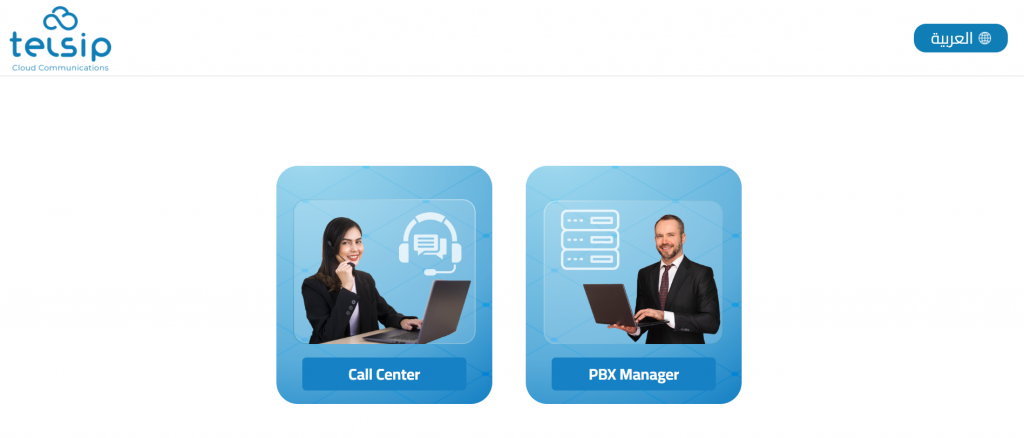
Click مع كول سنتر زونتل to move to the Call Center login page

Step 2:
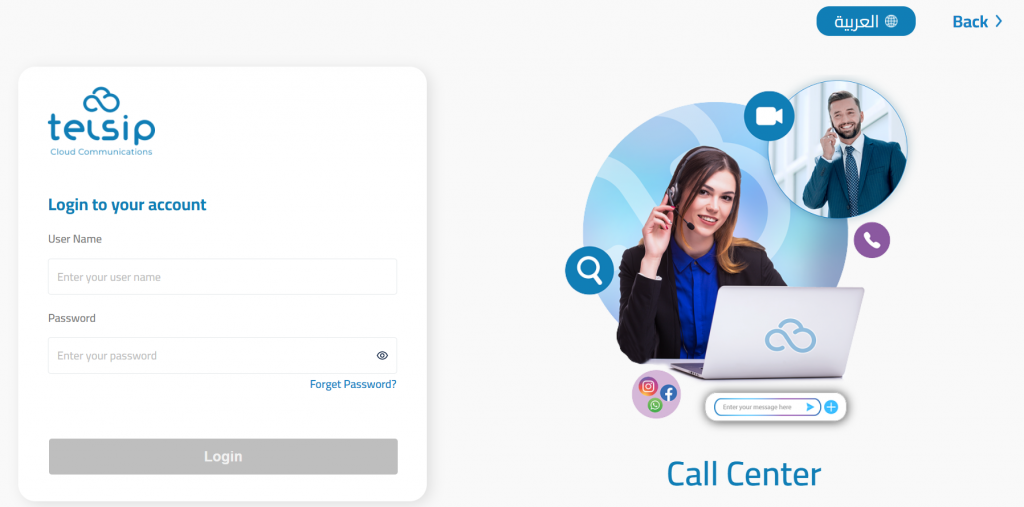
Enter your Username and Password in the provided fields.

Step 3:

Click the Login button to enter the Call Center Agent interface. From here, you can handle calls, view tickets, and communicate with customers efficiently.

🌍 Language Option

A convenient language switcher is available at the top right, allowing you to choose English or another supported language for a comfortable user experience.

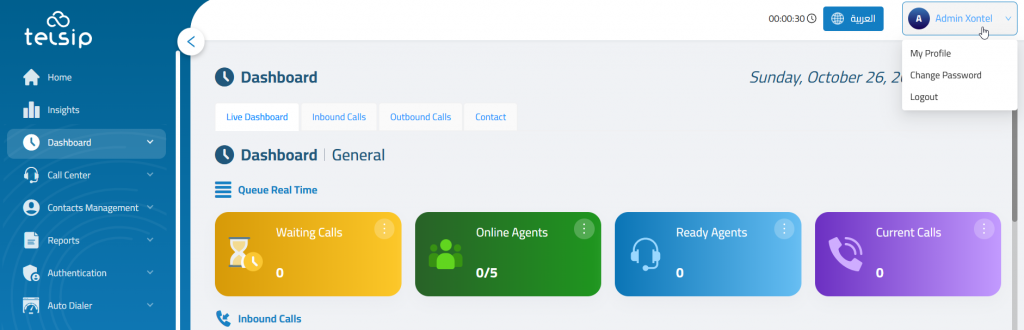
👤 User Menu Overview

The User Menu is your personal control panel. From here, you can manage your profile, change your password, or securely log out of the system.

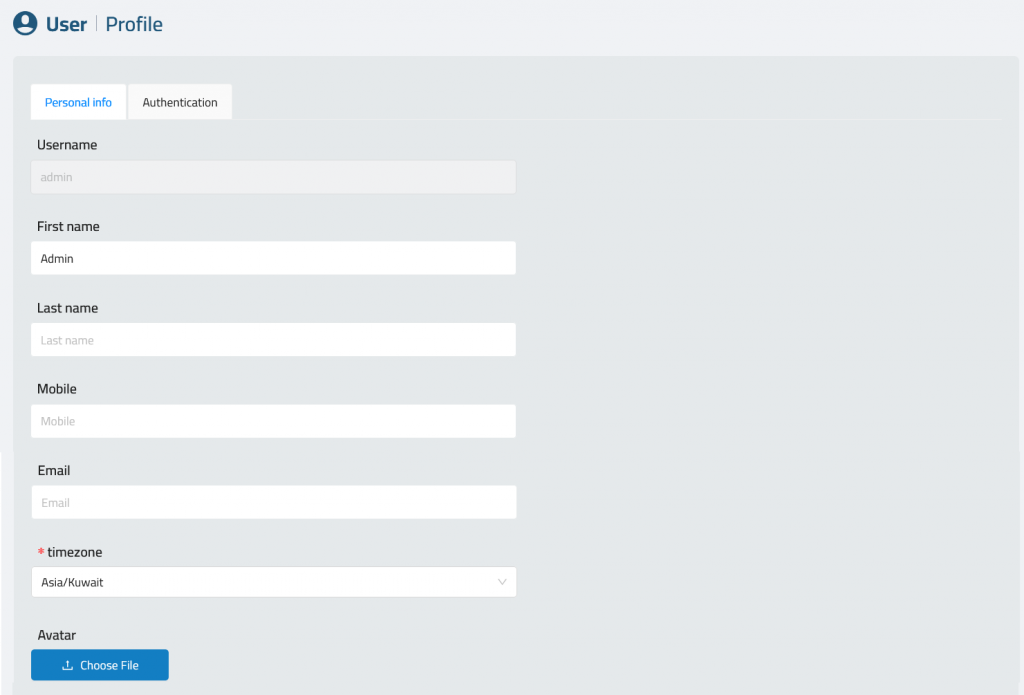
📝 Editing Your Profile

Personal info

Inside Personal Info, you can update the following fields:

  • User Name – This is fixed and cannot be changed (usually set by your system admin).
  • First Name – Optional.
  • Last Name – Optional.
  • Mobile – Optional contact number.
  • Email: Add your Email.
  • Timezone: Select your timezone
  • Upload or change your Avatar image by clicking Choose File.

Authentication
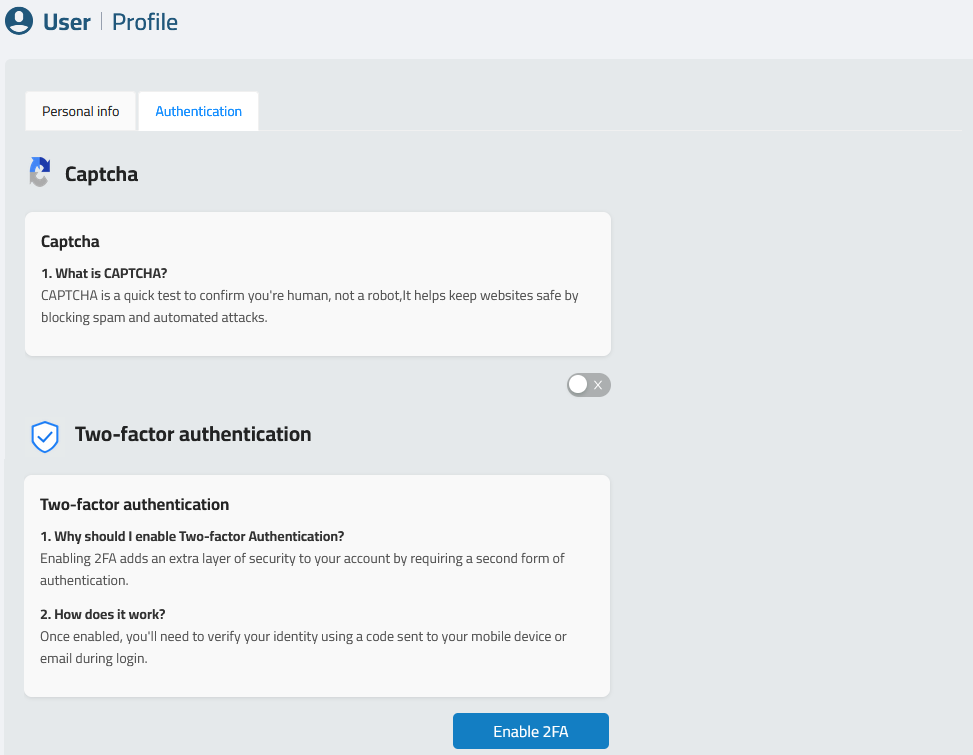
Each user can enhance their account security directly from their profile:

✅ CAPTCHA
  • Prevents automated bots from attempting unauthorized access.
  • Toggle the switch to activate CAPTCHA for login.

During login:
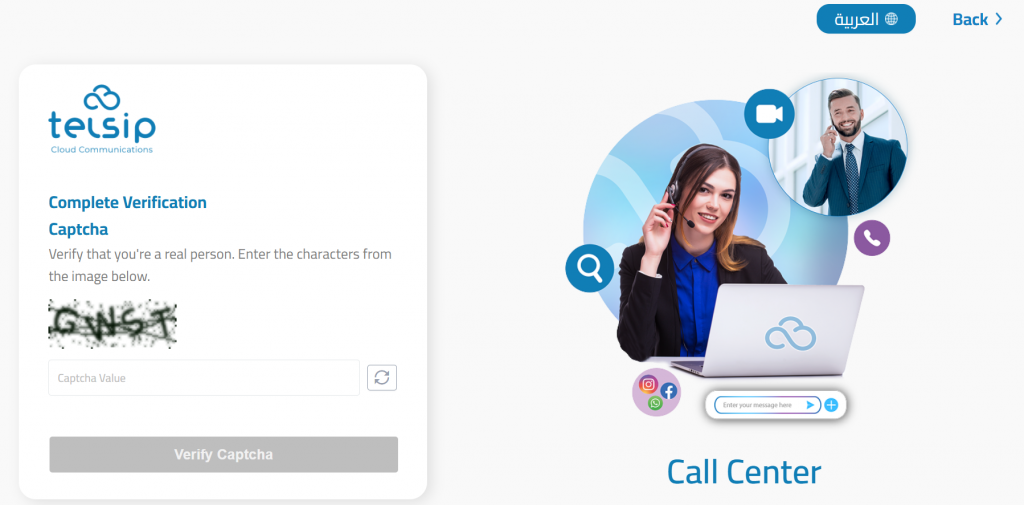
After entering your username and password, complete the CAPTCHA verification to confirm you are a valid user. Enter the characters exactly as shown in the image and click “Verify Captcha”.

✅ Two-Factor Authentication (2FA)
  • Adds an extra layer of protection by requiring a second verification step.
  • Click Enable 2FA to start setup using an authenticator app.
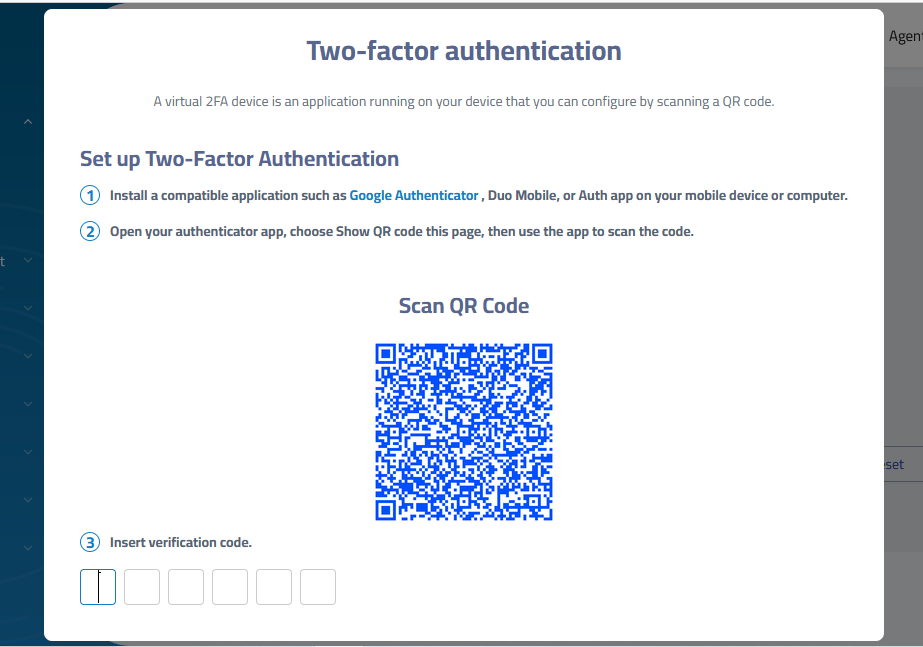
During login:
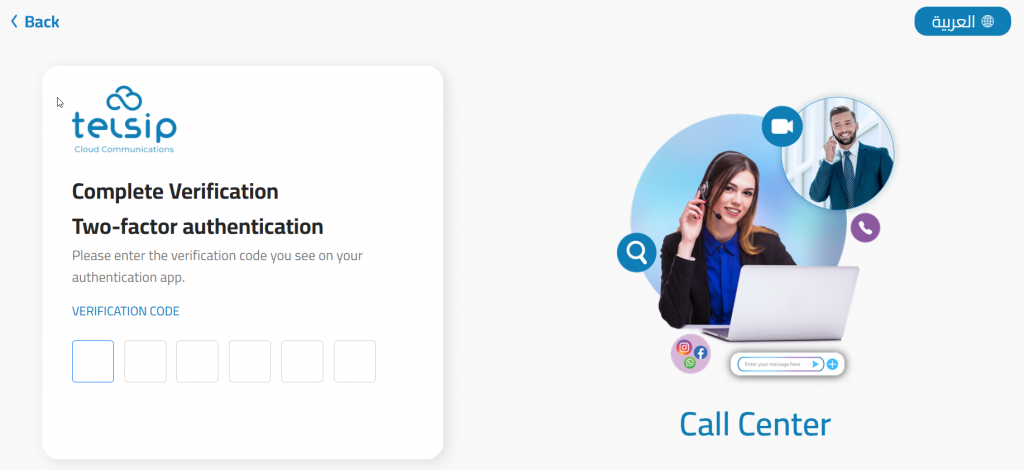
After entering your username and password, complete the CAPTCHA verification. If CAPTCHA is enabled (by user or admin), users are prompted to enter a 6-digit verification code from their authentication app (e.g., Google Authenticator or Microsoft Authenticator).

Note: Admins may enforce 2FA or CAPTCHA for specific roles from the admin panel.

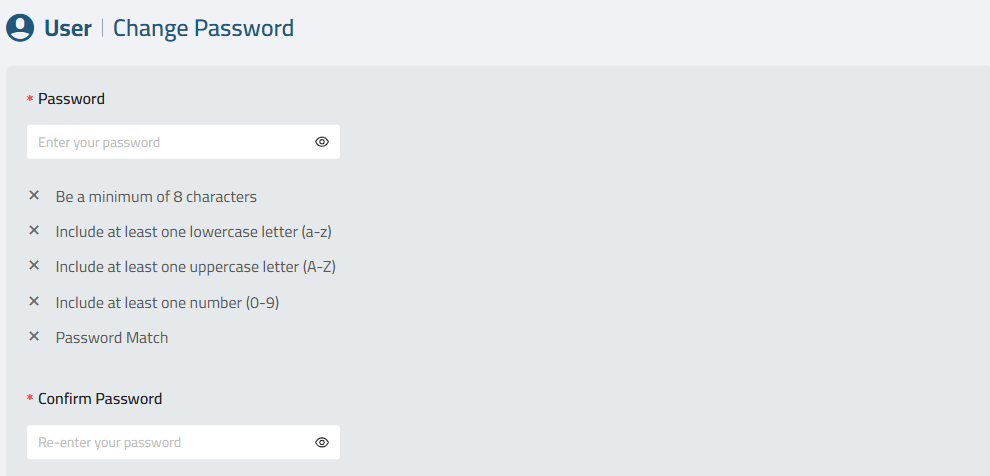
🔐 Changing Password

To keep your account secure, follow the password policy when creating a new password:

  • Enter your New Password, ensuring it meets the security requirements:
    • Minimum of 8 characters.
    • At least one lowercase letter.
    • At least one uppercase letter.
    • At least one number.
    • The new password and confirmation must match.
  • Confirm the new password in the Confirm Password field.
  • Submit the change.

🔐 Forget Password

Forgetting a password can happen to anyone. To ensure minimal disruption, XonTel’s Call Center platform provides a secure and straightforward password reset process.

Step 1: Navigate to the “Forget Password” Page
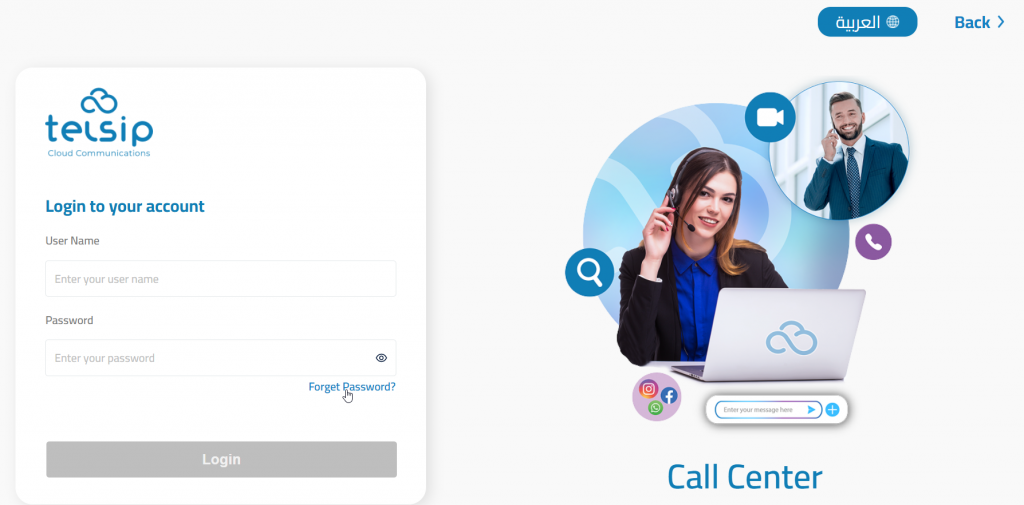
  • On the login screen, click the “Forget Password?” link.
  • You will be redirected to the Forget Password (Call Center) page.
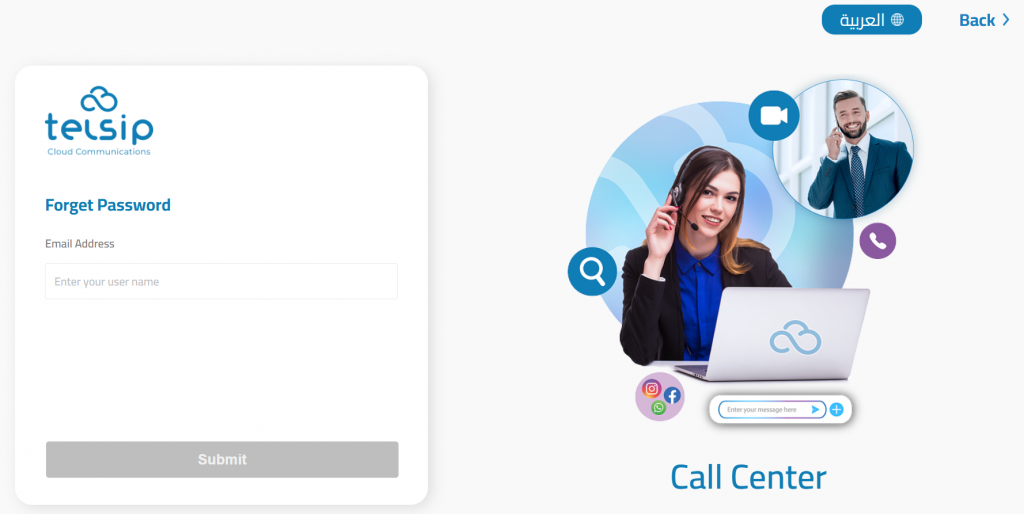
  • Enter your registered email address in the input field.
  • Click the “Submit” button.

Step 2: Check Your Email
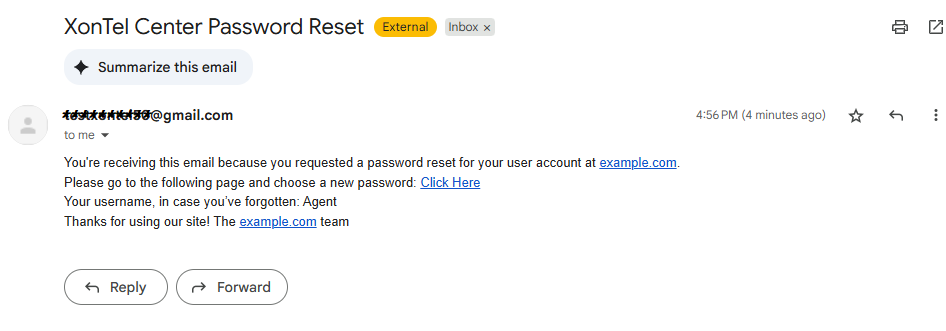
  • You will receive an email titled “XonTel Center Password Reset” from the system.
  • The email includes:
    • A password reset link (Click Here)
    • Your username (in case you forgot it)

Note: If the email doesn’t appear in your inbox, check your spam/junk folder.

Step 3: Set a New Password

Click the reset link from the email. You will be redirected to the Confirm Password page.
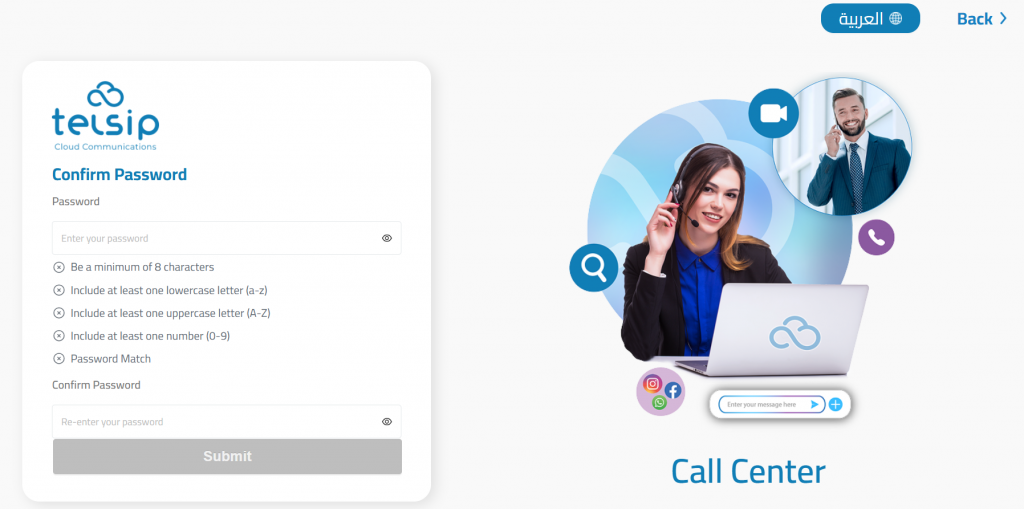
  • Enter a new secure password that meets all the following requirements:
    • Minimum of 8 characters
    • At least one lowercase letter (a–z)
    • At least one uppercase letter (A–Z)
    • At least one number (0–9)
  • Re-enter the new password in the Confirm Password field.
  • Click Submit.

Was this helpful?

Yes  No

Didn't find your answer? تواصل معنا

Previously
Overview
Up Next
Dashboard
Copyright 2026 telsip.com All Rights Reserved