
Catalogs lets you manage the products customers can browse on your WhatsApp number. Each catalog belongs to one WhatsApp channel, and each catalog holds a list of products with their prices and pictures.
- Before you start
- You need a connected WhatsApp channel. To connect one, go to Channels.
- View your catalogs
- From the side menu, go to WhatsApp, then Catalogs.
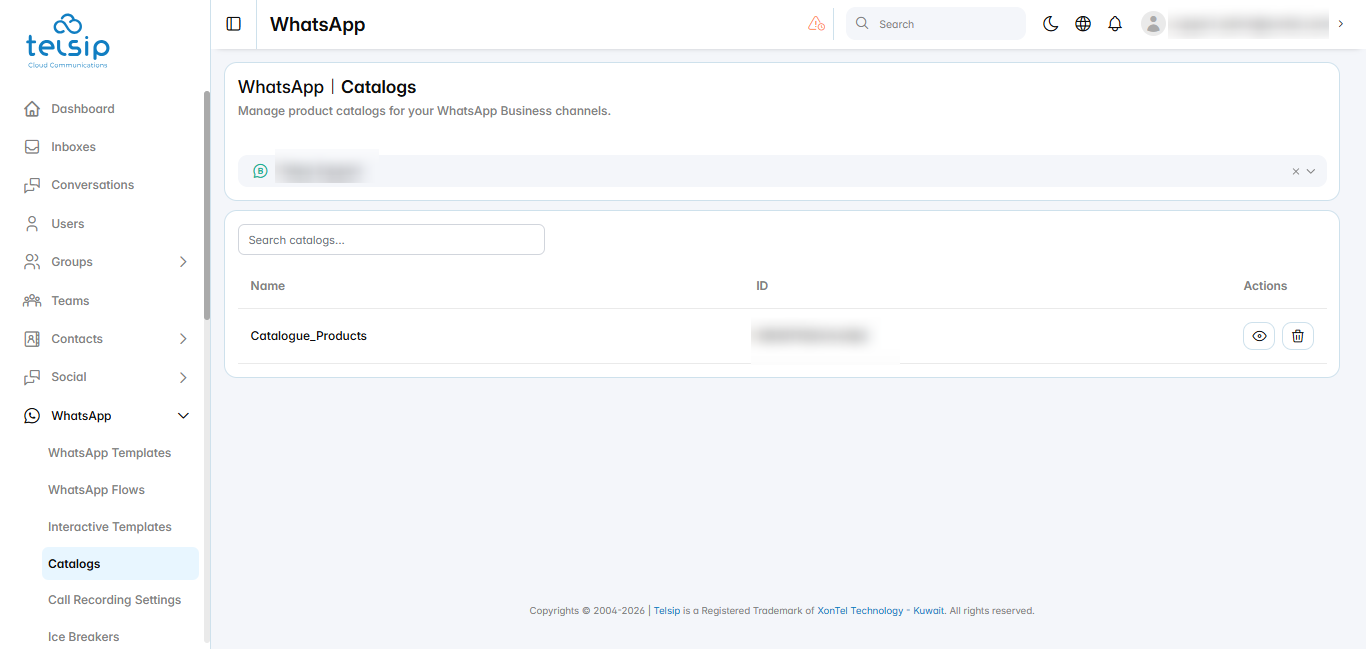
- Select a WhatsApp channel from the list at the top. The catalogs of this channel will appear.
- Use the search box to find a catalog.
- The table shows the catalog Name and ID.
- To open a catalog, click the eye icon.
- Create a catalog
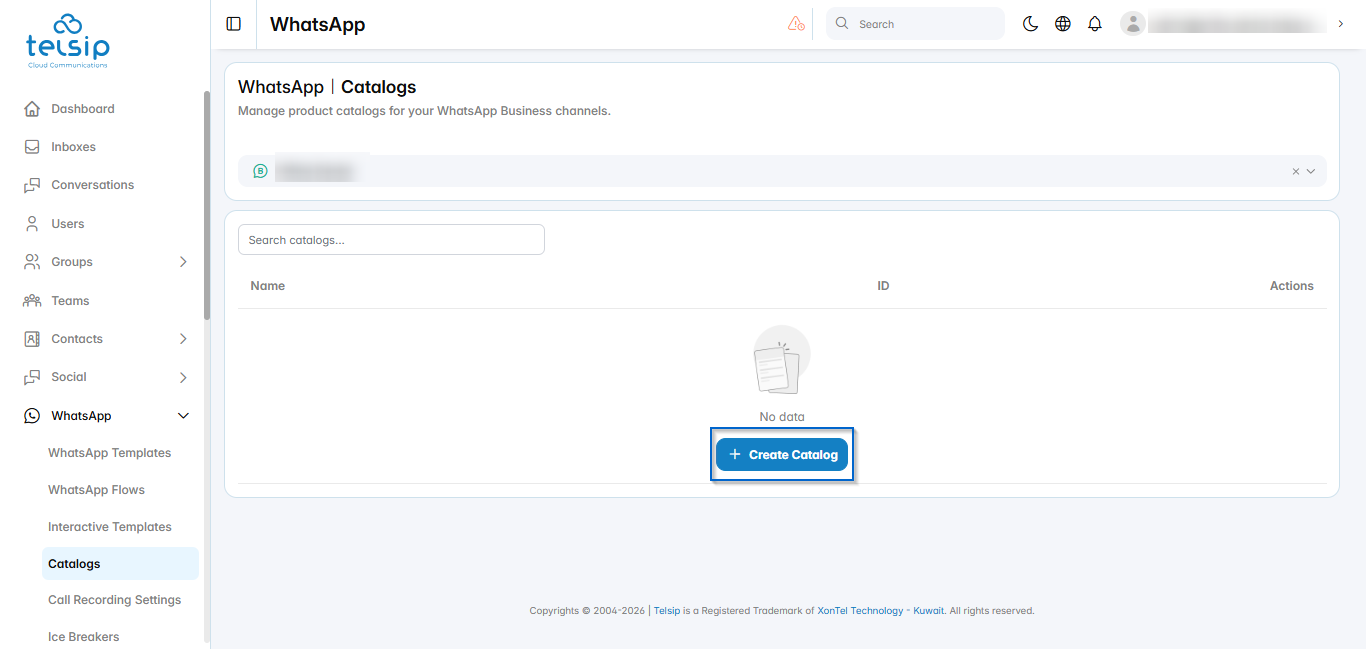
- Select the WhatsApp channel. If the channel has no catalog, you will see the Create Catalog button.
- Click Create Catalog.
- Enter the catalog Name.
- Select the Vertical (business category). Currently, Commerce is the available option.
- Click Create Catalog.
- View a catalog
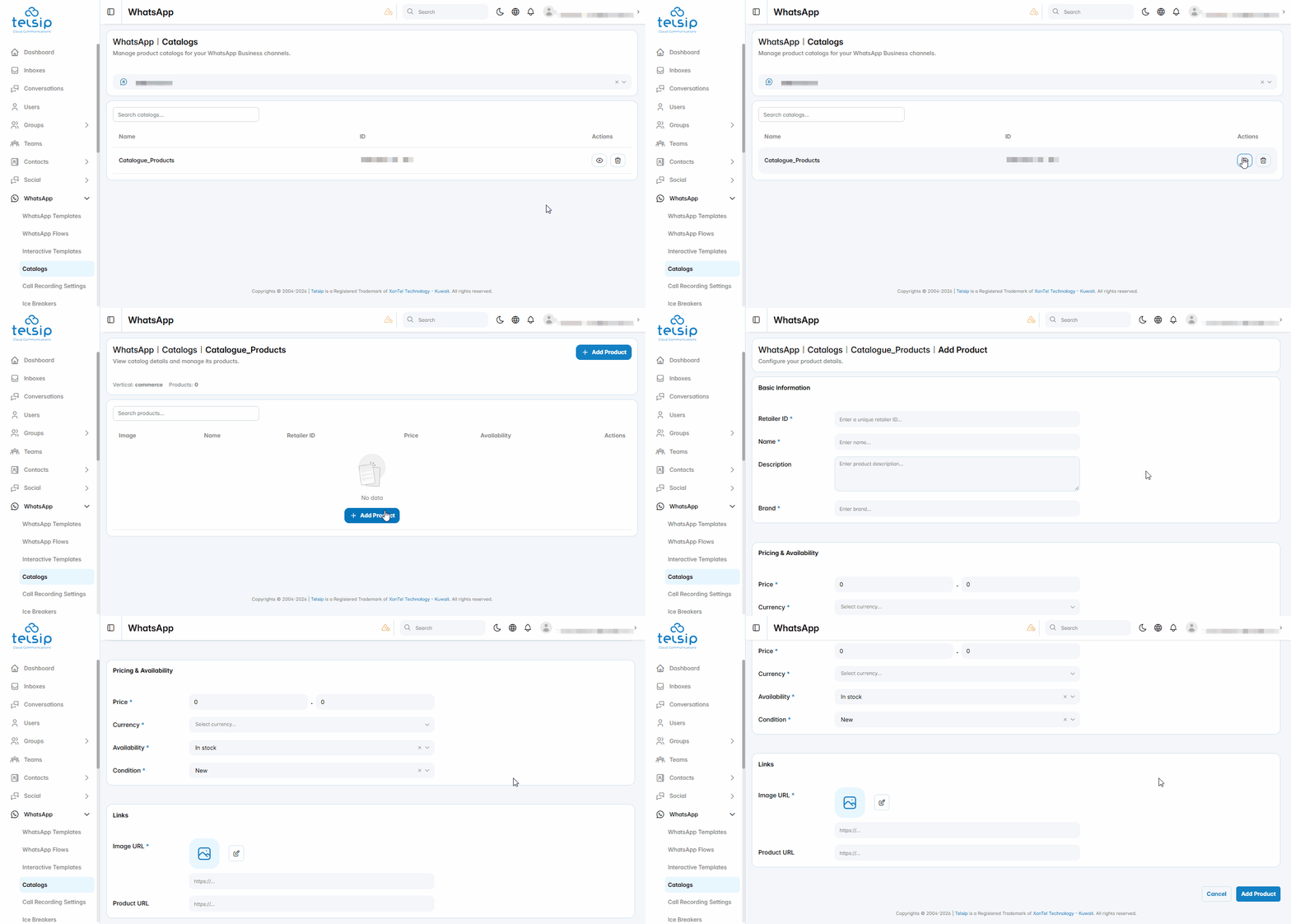
- When you open a catalog, you will see its Vertical (business category) and the number of Products.
- The products table shows the Image, Name, Retailer ID, Price, and Availability of each product.
- Add a product
- Open the catalog, then click Add Product.
- Fill in the product details:
- Basic Information:
- Retailer ID: your own unique ID for the product, like the code you use in your inventory.
- Name: the product name.
- Description: a short description of the product (optional).
- Brand: the brand name.
- Pricing & Availability:
- Price: enter the whole amount in the first box and the cents in the second box.
- Currency: select the currency of the price.
- Availability: In stock, Out of stock, Preorder, or Discontinued.
- Condition: New, Refurbished, or Used.
- Links:
- Image URL: a link to the product image.
- Product URL: a link to the product page on your website (optional).
- Basic Information:
- Click Add Product to add it to the catalog.
- Delete a catalog
- In the catalogs list, click the delete icon next to the catalog, then confirm.
📌 Notes:
- All fields marked with * are required.
- Use a clear, public image link, because the image is the first thing customers see.
- Each product should have a different Retailer ID.