
Social Interactive Templates are ready-made rich messages for Messenger and Instagram, such as product cards with images and buttons, button menus, quick replies, coupons, and feedback surveys. You create a template once and reuse it in conversations instead of building the message every time.
- Before you start:
- Connect a Messenger or Instagram channel from the Channels page.
- View templates:
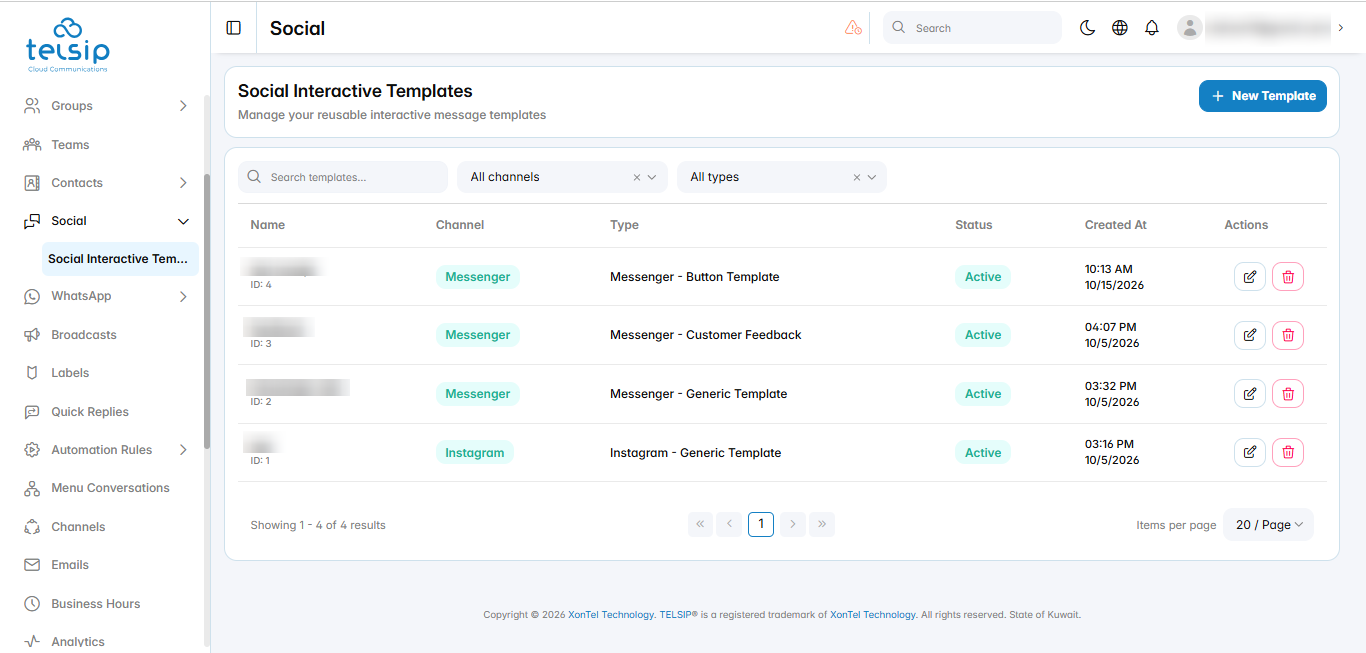
- Click Social from the sidebar menu, then click Social Interactive Templates.
- Search for a template by name, or filter the list by channel (Messenger or Instagram) and by type.
- The table shows each template’s name, channel, type, status, and creation date. Use the icons in the Actions column to edit or delete a template.
- Create a template:
- Click New Template.
- Template Name: a name for the template, for example “Summer Offers”.
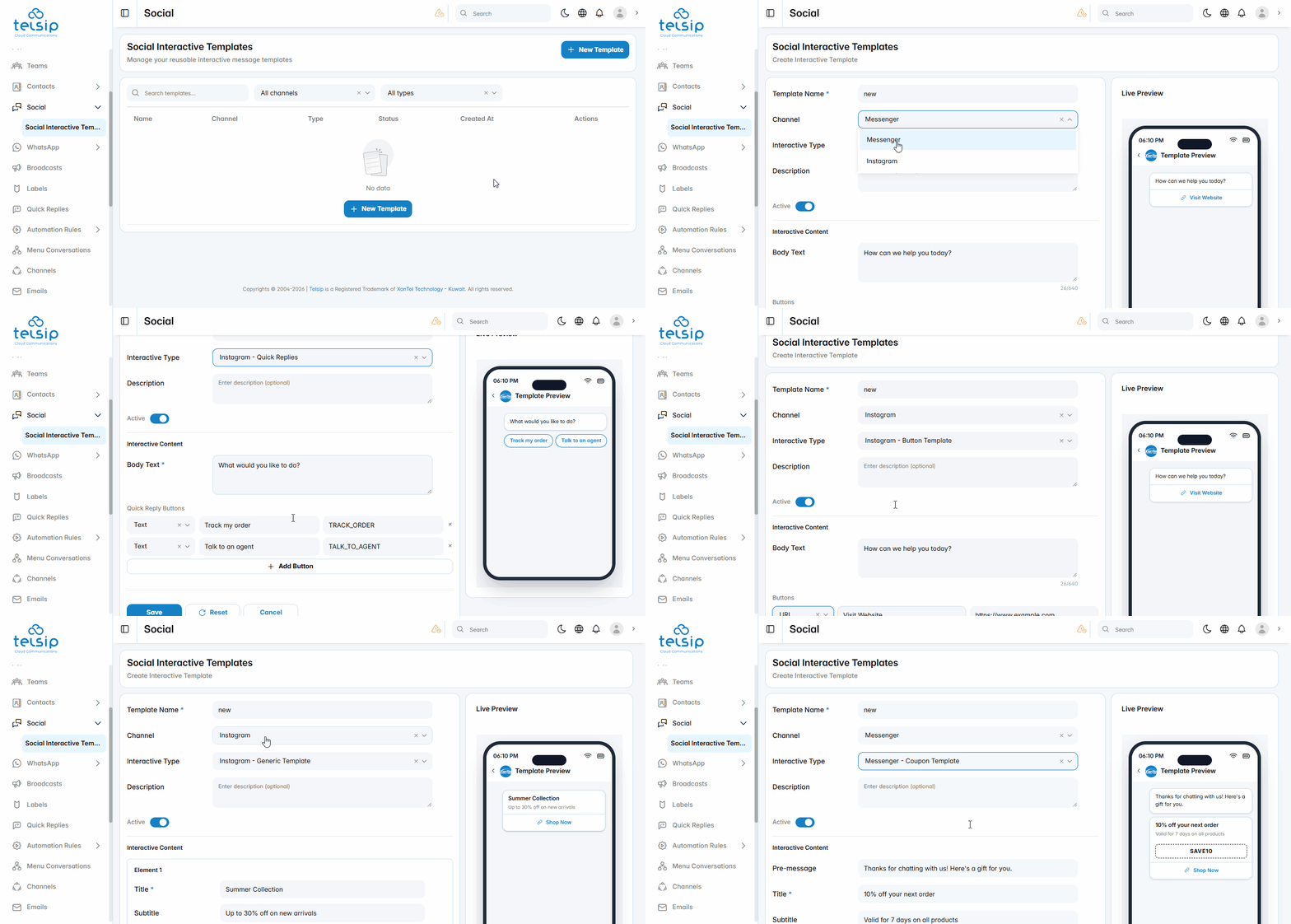
- Channel: choose Instagram or Messenger. The available template types change based on the channel you choose.
- Interactive Type: choose the type of message:
- Instagram: Generic Template, Button Template, or Quick Replies.
- Messenger: Button Template, Generic Template, Image Grid, Coupon Template, or Customer Feedback.
- Description: an optional internal note about the template.
- Active: keep it turned on to use the template.
- Fill in the Interactive Content for the type you chose. The Live Preview on the right shows how the message will look.
- Click Save to create the template.
- Template types:
- Generic Template: one or more cards that customers can scroll through. Each card has a title, an optional subtitle and image, a link that opens when the card is tapped, and up to three buttons. Click Add Element to add another card.
- Button Template: a text message with up to three buttons.
- Quick Replies (Instagram): a message with reply options that customers tap to answer quickly.
- Image Grid (Messenger): a group of images, with an optional title, subtitle, and buttons.
- Coupon Template (Messenger): a discount offer with a coupon code or a coupon link.
- Customer Feedback (Messenger): a short survey that asks customers to rate their experience.
- Buttons:
- URL: opens a web page. Enter the button text and the link.
- Postback: sends a value back to the conversation when the customer taps the button. Enter the button text and the value to send.
- Edit or delete a template:
- Click the edit icon next to a template to change it, then click Save.
- Click the delete icon next to a template to delete it, then confirm.
📌 Note: For WhatsApp, use Interactive Templates from the WhatsApp section instead.