
The Conversations page lets Administrators and Supervisors monitor all customer conversations across every channel in one list. Use it to see which conversations are active, who they are assigned to, and how long they have been waiting, and to step in when a conversation needs attention.
- View conversations:
- Click Conversations from the sidebar menu.
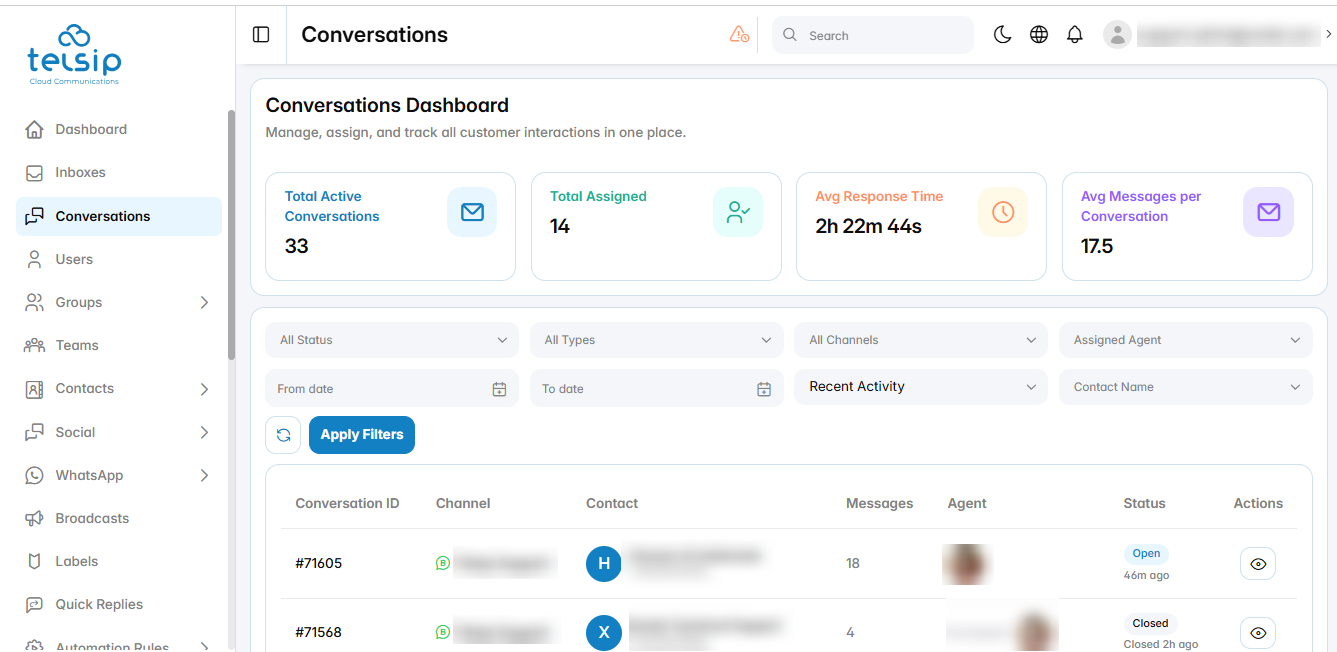
- The cards at the top show the total active conversations, total assigned conversations, average response time, and average number of messages per conversation.
- The table shows each conversation’s ID, channel, contact, number of messages, assigned agent, and status. Under the status, you can see how long ago the conversation was last active.
- Filter conversations:
- Status: Open, Hold, Bot Handling, Closed, or Assigned.
- Type: External for conversations with customers, or Group and Direct for internal conversations between your team members.
- Channel: show conversations from one channel only.
- Assigned Agent: show conversations assigned to a specific agent.
- From date and To date: show conversations within a specific date range.
- Sort: order the list by Recent Activity, Newest Created, Most Unread, or Highest Priority.
- Contact Name: search for a contact by name or phone number.
- After choosing your filters, click Apply Filters. Click the refresh icon to reset them.
- Open a conversation:
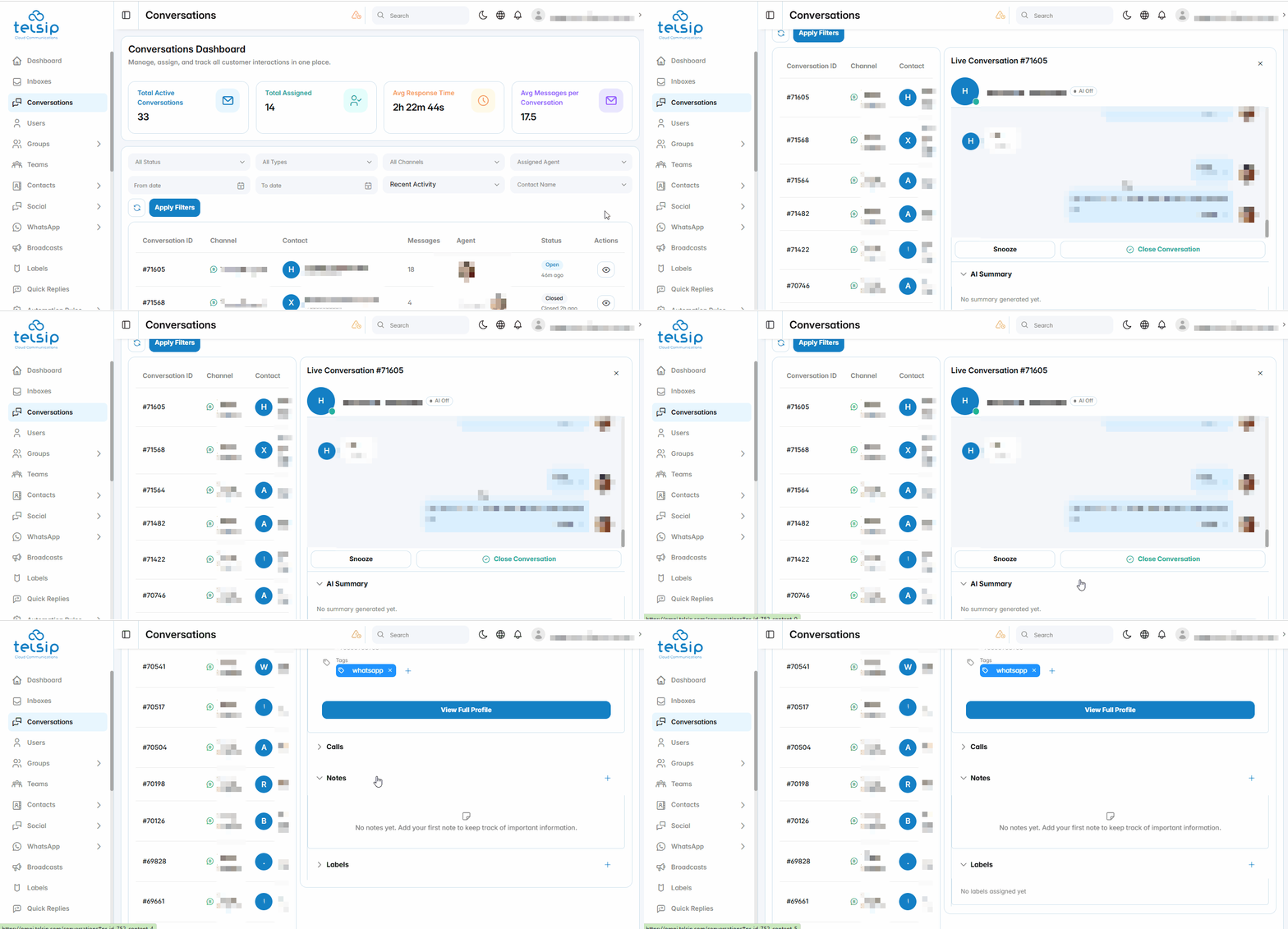
- Click the eye icon next to a conversation. The Live Conversation panel opens next to the list and shows the full message history.
- To close the panel, click the X icon at the top.
- Live Conversation panel:
- Snooze: puts the conversation on hold and changes its status to Hold. Click Unsnooze to resume it.
- Close Conversation: closes the conversation.
- AI Summary: click Generate Summary to create a short AI summary of the conversation.
- Conversation details: shows the status, priority, channel, creation date, subject, assigned agent, and assigned team. Click Reassign next to the agent or team to assign the conversation to someone else.
- Contact info: shows the contact’s name, phone number, and tags. Click View Full Profile to open the contact’s profile.
- Calls: shows the calls related to this conversation.
- Notes: internal notes about the conversation that are visible to your team only. Click the plus icon to add a note.
- Labels: the labels added to the conversation. Click the plus icon to add a label. Labels are managed from the Labels page.
📌 Notes:
- Snooze and Close Conversation are applied immediately, without a confirmation message.
- Administrators and Supervisors cannot reply to customers from the Admin Portal. Only agents can reply, from the Agent Workspace.